The Ensomedia Security plugin for WordPress: what it checks and how to use it
A screen-by-screen guide to the free ShieldWave plugin for WordPress: the first scan, the Overview, fixing a problem, login protection, History, and what it does not do.
Ensomedia Security is a free WordPress plugin that checks your site from the inside and tells you in plain words what is wrong and how to fix it. The WordPress.org directory lists it as Ensomedia Security powered by shieldwave.io; in your dashboard it appears as ShieldWave.
Its 23 checks look for malware and tampered files, known vulnerabilities in plugins and themes, spam and scripts hidden in your content, backups that anyone can download, and risky accounts and settings. It also locks out password guessers and adds two-factor login. It never edits, moves or deletes your files, users or settings.
The screenshots show version 1.0.3 in the dark theme. The buttons in the plugin's header switch it to light.
Install it and run the first scan
In your dashboard, go to Plugins > Add New Plugin, search for "Ensomedia Security", then click Install Now and Activate. It needs WordPress 6.2 and PHP 7.4 or newer. Activating it starts no scan and sends nothing anywhere.
Open ShieldWave in the left-hand menu and press Start the first scan.
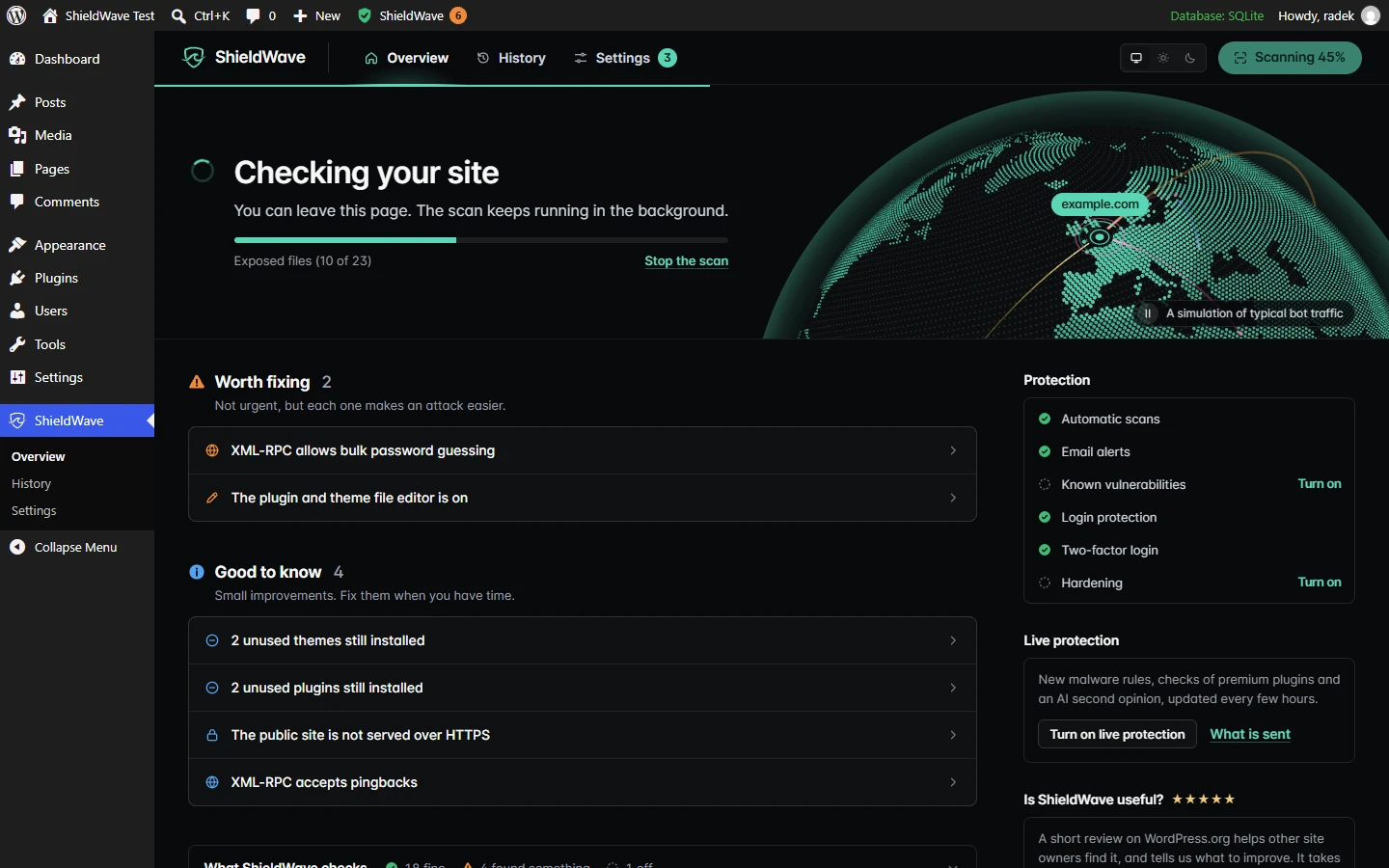
The first scan usually takes a few minutes, because ShieldWave records your files as a baseline to compare later scans against. Later scans are quicker, since a clean file that has not changed is not analysed again. Scans run in the background in short steps, never while a visitor's page is loading, so you can close the tab. From then on ShieldWave scans every day at 03:00, your site's time. Settings changes the hour and how often.
Reading the Overview
The Overview opens with one sentence about your site: Your site looks safe; Your site looks good, meaning nothing urgent but a few things could be better; 1 thing needs your attention, or more, with the most urgent one named below; or Your site shows signs of a break-in, covered below.
Below it you see when the last scan ran, when the next one is due, and a score out of 100. For each check, the most serious open problem takes points off: 30 for critical, 15 for high, 8 for medium and 3 for low.
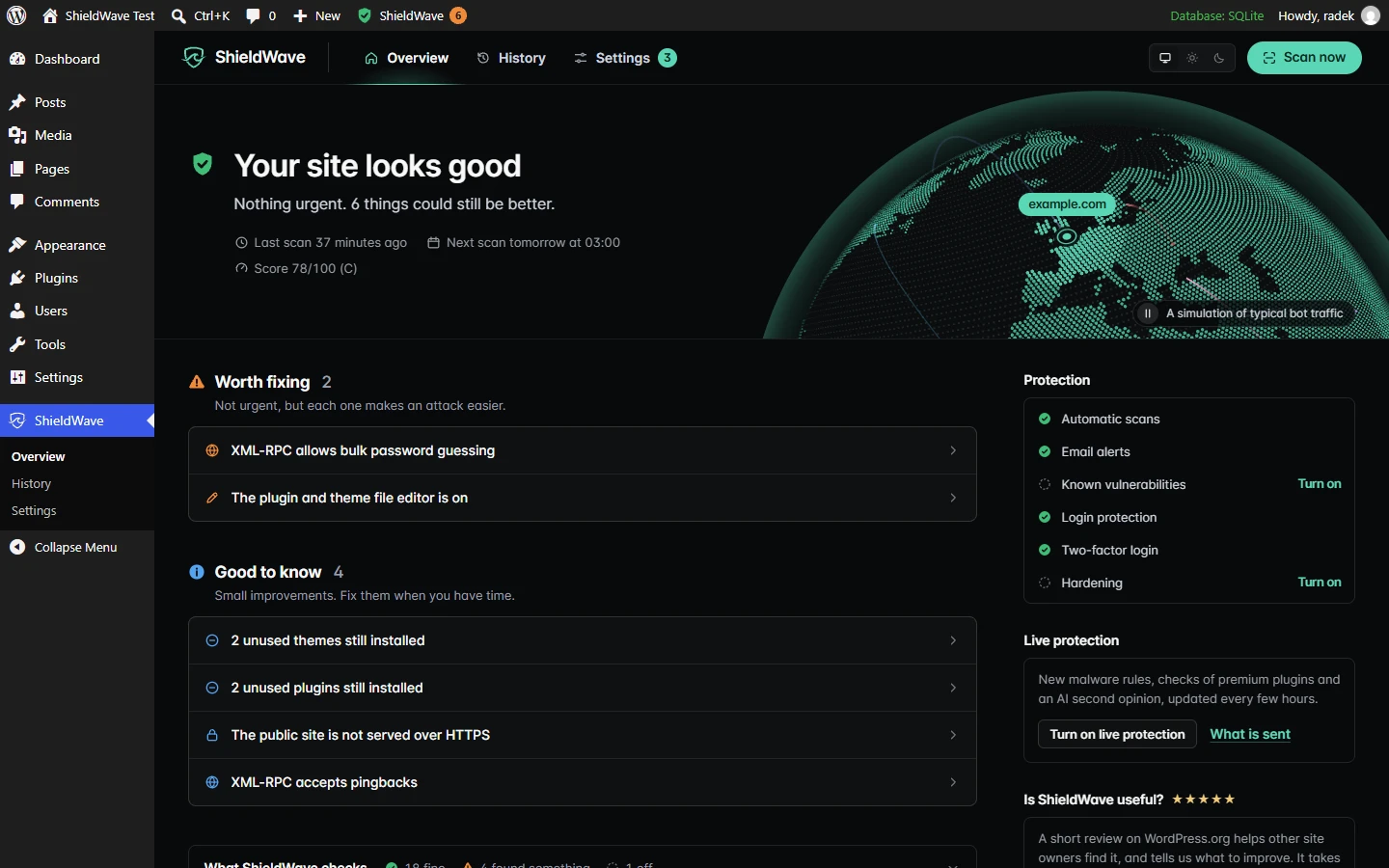
Below is your to-do list. Problems of the same kind share one row, so several outdated plugins make one item, not several. The rows fall into four groups:
- Fix now: problems that can let someone into your site, or signs that someone already got in.
- Worth fixing: not urgent, but each one makes an attack easier.
- Ask your developer to check: findings ShieldWave is not sure about, such as a new PHP file in a premium plugin that appeared without an update. Someone who knows the site can tell in a minute, and they never send an email.
- Good to know: small improvements for when you have time.
The right-hand column lists what protects the site: automatic scans, email alerts, the known-vulnerability check, login protection, two-factor login and hardening. Anything switched off has a Turn on link into Settings, and the number on the Settings tab shows how many are still off. What ShieldWave checks, under the list, unfolds into every check with its latest result.
The planet marks roughly where your site is, with your domain over it. The position comes from the time zone set in WordPress; nothing is looked up online. The shots flying over it are a simulation of typical bot traffic, as the note under the planet says, and not a record of attacks on your site. The button beside the note stops the motion.
Fixing one problem
Click a row to open it.
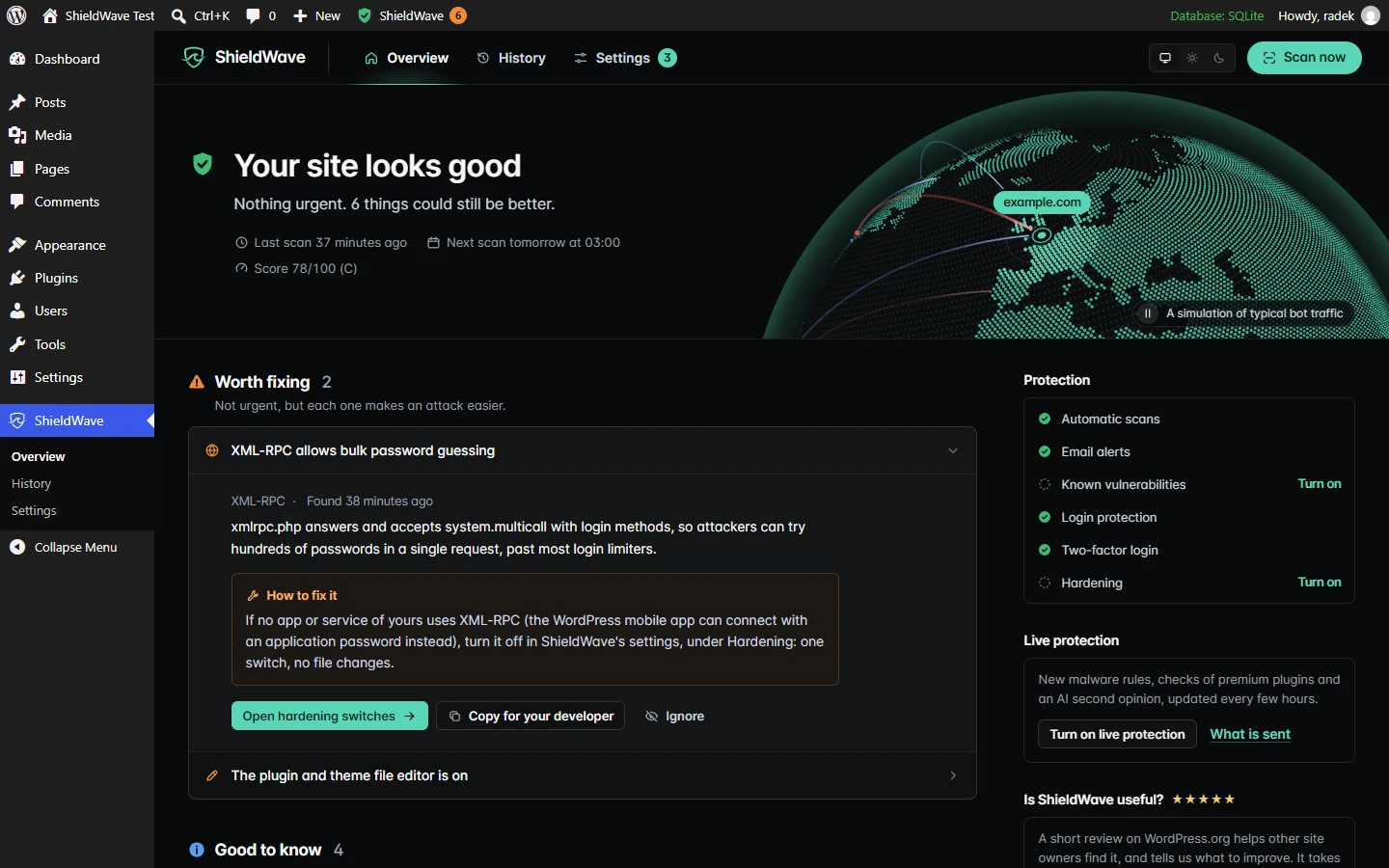
An opened item says which check found it and when, what exactly was found and, in its own box, How to fix it. If the fix is made on a WordPress screen, the main button goes there: Open updates for outdated plugins, Open users for an administrator you did not expect, Open general settings when people who register on your site get too many rights. If one of ShieldWave's own switches fixes the problem, as with the file editor or XML-RPC, the button opens that switch.
Some fixes need someone with access to the server. Copy for your developer puts a ready message on your clipboard: your site's address, what was found and where, the technical details and how to fix it. Paste it into an email and you have nothing to explain. For the rest of that conversation, see talking to your developer about security. Technical details at the bottom list the file, the matching rule and the code, or a vulnerability's CVE number and the version that fixes it.
If a finding is about something you changed on purpose, press Ignore. It stops counting towards the score and the alerts and moves under the Ignored link below the list, where Restore brings it back. An ignored file comes back by itself if it changes again.
After a fix, press Scan now. The item leaves the list once a scan no longer finds the problem.
When it says your site shows signs of a break-in
This headline needs clear evidence: malicious code in a file, WordPress, plugin or theme PHP files that differ from the official release, PHP files that should not be there, a web shell (a script that lets someone control the server from a browser) in the uploads folder, or an account with administrator powers but without the Administrator role. Findings ShieldWave is unsure about never trigger it.
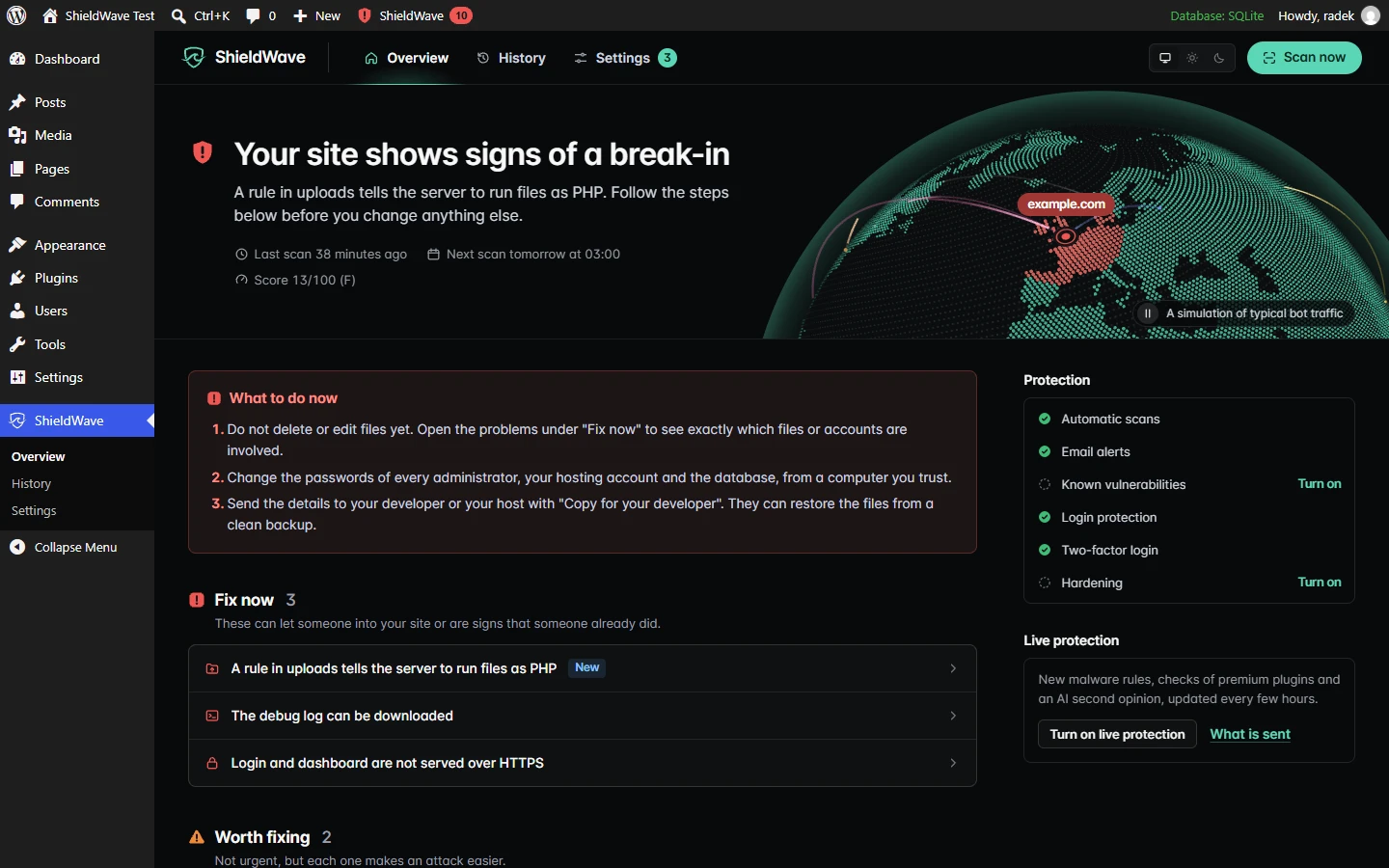
A What to do now box above the list then gives three steps:
- Do not delete or edit files yet. Open the items under Fix now to see which files or accounts are involved.
- From a computer you trust, change the passwords of every administrator, your hosting account and the database.
- Send the details to your developer or your host with Copy for your developer. They can restore the files from a clean backup.
Deleting files in a hurry destroys the traces that show how the attacker got in, and the way in stays open. Signs your website was hacked covers the first hour in more detail.
Switching on protections in Settings
Settings is one page with a menu of sections on the left.
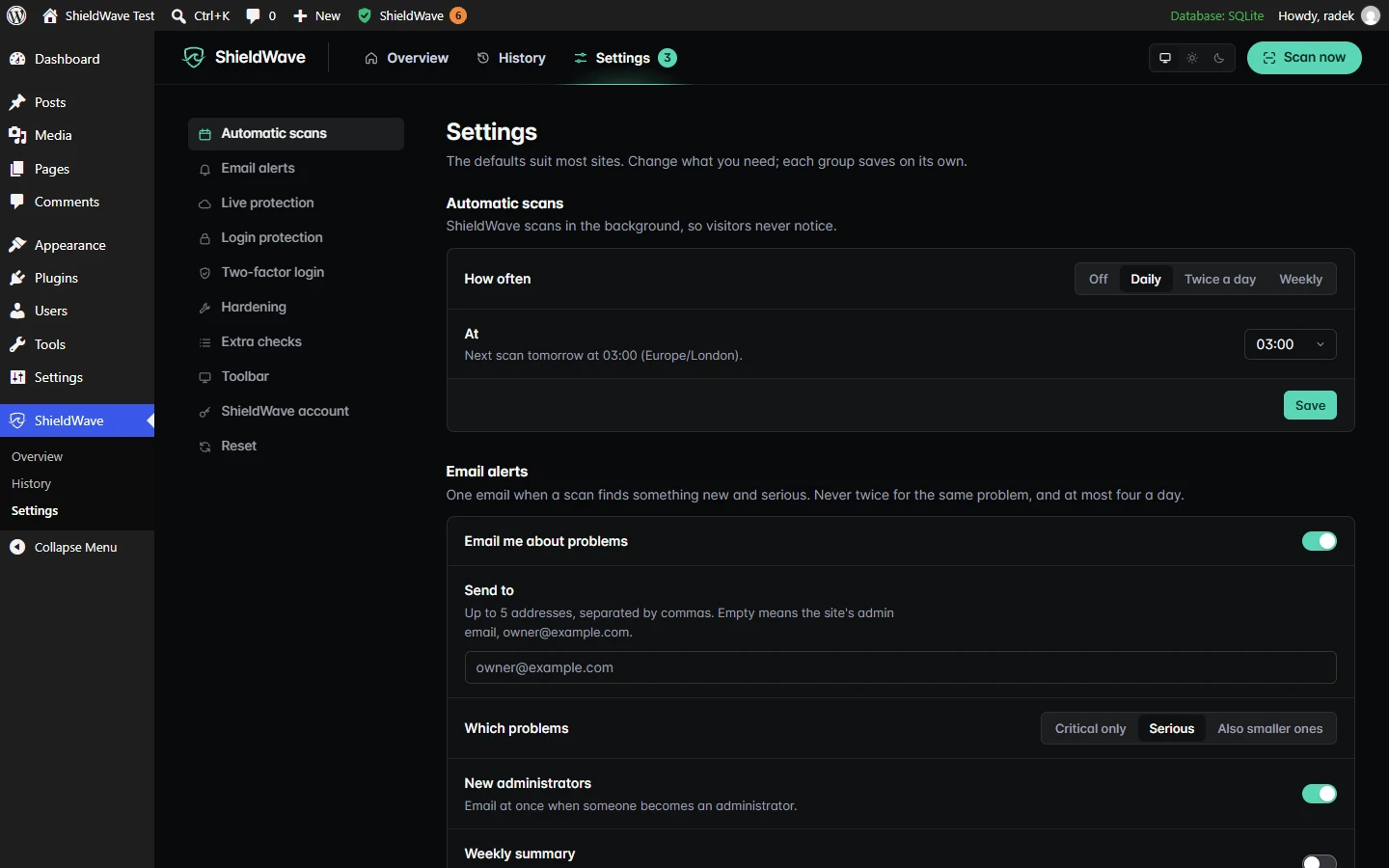
Automatic scans and Email alerts are on from the start. After a scheduled scan you get an email only about problems that are new or got worse, at the level you pick: Critical only, Serious (the default) or Also smaller ones. Never twice about the same problem, at most four a day, and none after a scan you started yourself, since you are already looking at the result. A separate switch emails you at once when someone becomes an administrator.
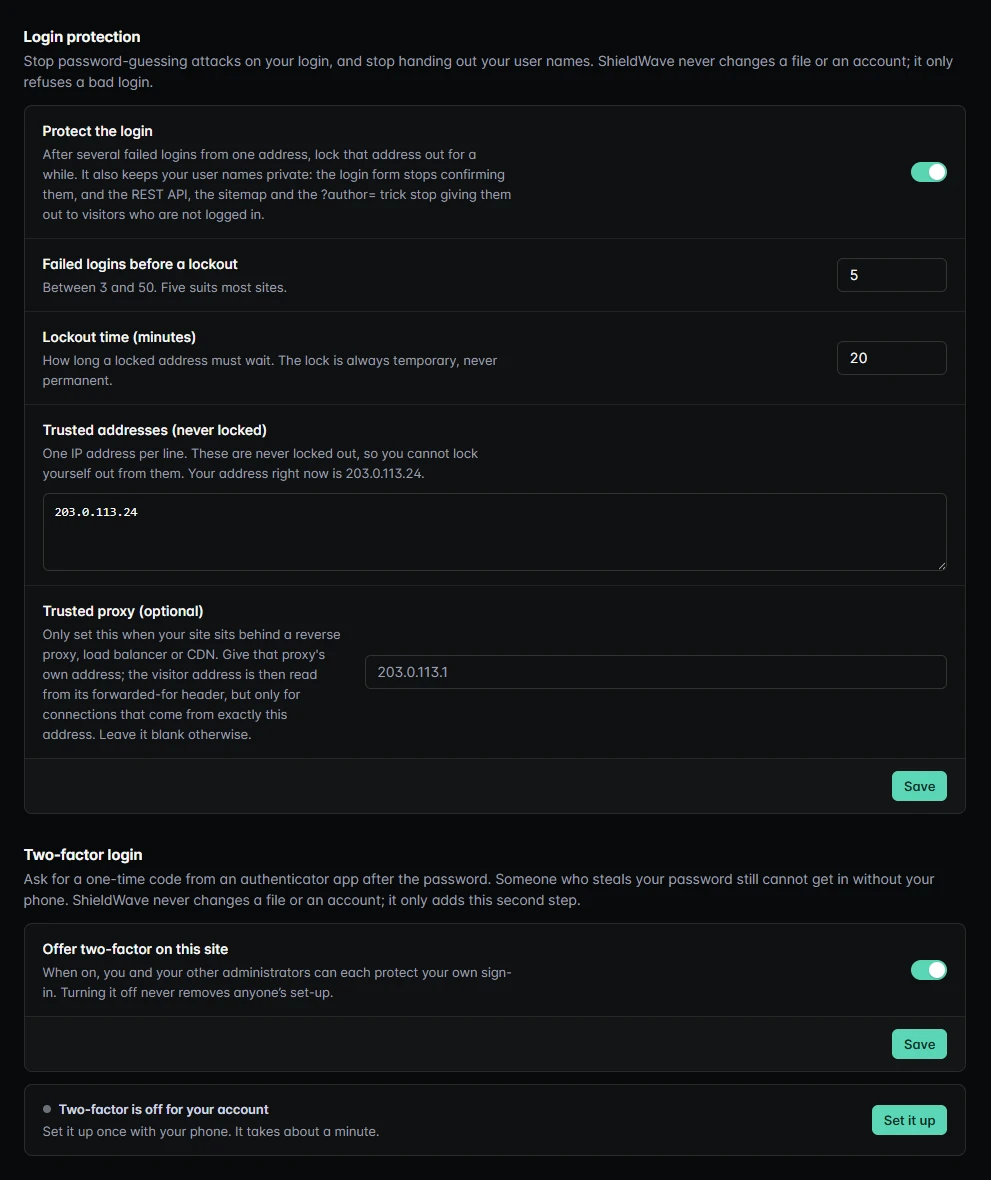
Login protection is on from the start on a new install; if you updated from an older version, switch it on here. Five failed logins from one address (you can choose from 3 to 50) lock that address out for 20 minutes, or for the time you set. The lock is always temporary, trusted addresses are never locked, and the address you switch the protection on from joins the trusted list. The same switch keeps your user names private: the login form stops confirming them, and visitors who are not logged in cannot read them from the REST API, the sitemap or the ?author= trick.
Two-factor login is set up by each administrator for their own account. Press Set it up, add the key to an authenticator app such as Google Authenticator or Authy, and type in the six-digit code it shows. The code is required only after that confirmation, and you get ten single-use recovery codes for a lost phone. ShieldWave shows them once, so keep them in a password manager.
Hardening has two switches. Turn off the file editor removes the plugin and theme code editor from the dashboard, so a stolen administrator password cannot be used to plant code through it; updates keep working. Turn off XML-RPC closes an old interface that attackers use to guess passwords in bulk; if a plugin you use needs it, Jetpack for example, the setting names it. Neither switch changes a file, and turning one off puts things back at once.
Live protection has three features, all off until you turn them on, each with a What is sent note:
- Known vulnerabilities, premium included warns you when a plugin, theme or WordPress version you run has a published security hole, and names the update that fixes it. It sends your WordPress version and the names and versions of your plugins and themes, never your site's address.
- Live threat feed downloads new malware rules every few hours. It sends nothing about your site.
- AI second opinion gives a plain-language verdict on a file the scanner cannot judge on its own, from a short excerpt with your site's address, email addresses and anything that looks like a password or key removed first; wp-config.php is never sent.
Turn on live protection on the Overview switches on all three at once; the switches in Settings let you pick. On cheap or busy hosting, open Extra checks, then Advanced, and set Scan speed to Gentle.
History
History records every scan and each change that matters for security, day by day, in plain sentences: problems found or fixed, a new administrator, plugins installed, updated or deleted, a new theme, WordPress updates, lockouts after failed logins, alerts sent and settings changed. The buttons at the top narrow it to scans or to changes on the site.
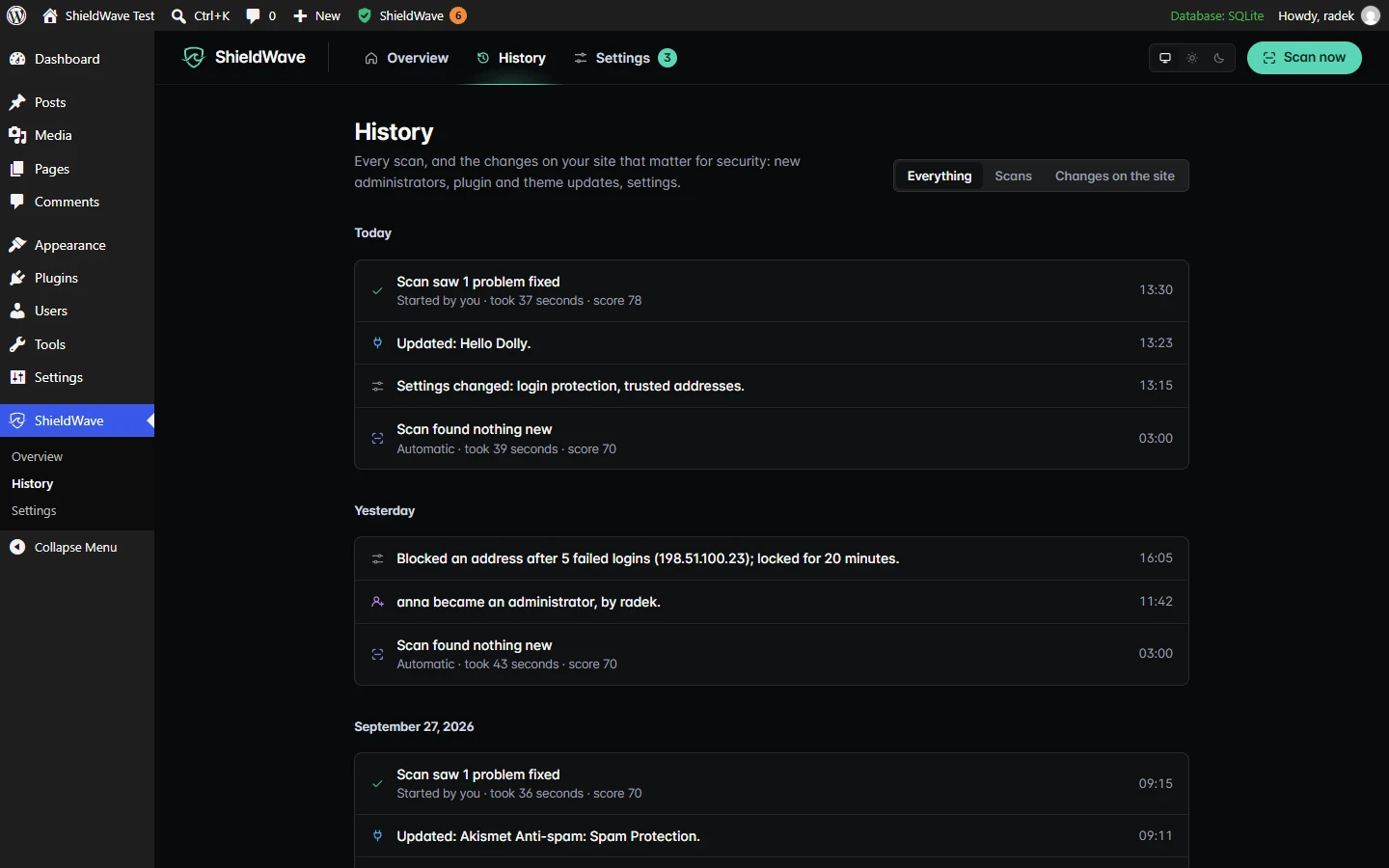
If an administrator appears whom nobody remembers adding, History shows when it happened, which is the first thing your developer or host will ask.
What is free and what needs an account
Everything in this guide works without an account, and the checks, scheduled scans and email alerts have no limits. The plugin makes no outside requests when you activate it or open its screens. During a scan it asks WordPress.org for the official checksums and requests a few addresses on your own site. The live protection features contact shieldwave.io only after you switch them on.
An account is for looking after several sites in one place. With a Pro or Enterprise plan you paste an API key under Settings > ShieldWave account, and the dashboard on shieldwave.io lists every connected site with its score and open problems. The connection only sends results: the dashboard cannot change a setting or start anything on your site. A free account can be connected too, but its results stay on your site. The plugin's page lists what each optional service sends.
What the plugin does not do
- It is not a full firewall and does not inspect or block every request to your site. The only things it refuses are a bad login, a stranger asking for your list of users, and the file editor and XML-RPC if you switch them off.
- It does not remove malware. It shows where the malware is and what to do; you, your developer or your host make the change.
- It does not make backups. Restoring a site after a break-in needs a clean copy kept away from the server.
- It adds nothing to the pages your visitors see.
It is also worth deleting the plugins you no longer use. Outdated WordPress plugins explains what to update first and what to remove.